Table of Contents
- Platform: Virtual Image (VMware/Hyper-V)
-
Component: CSG, XCM
Overview
Initial login to the Setup Console is required to configure networking on a Xona appliance. Additionally, it is typically required for initiating the Xona license request process. This KB article explains how Xona administrators can access the Setup Console.
Procedure
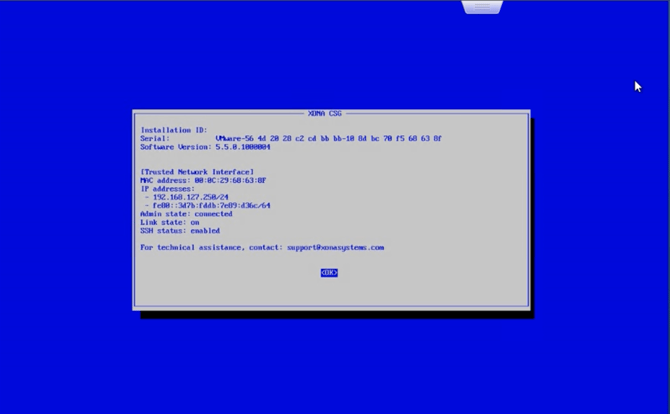
Unlike physical hardware and cloud versions of Xona, the System ID (shown here as Installation ID) is not generated until after the End User License Agreement (EULA) is accepted by the user. Following the steps in this KB article can be important for completing the licensing process for the Xona virtual machine.
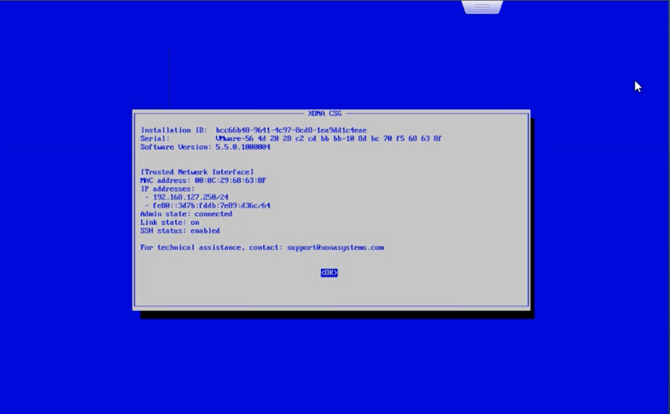
Starting from the splash screen, press Enter while <OK> is selected .
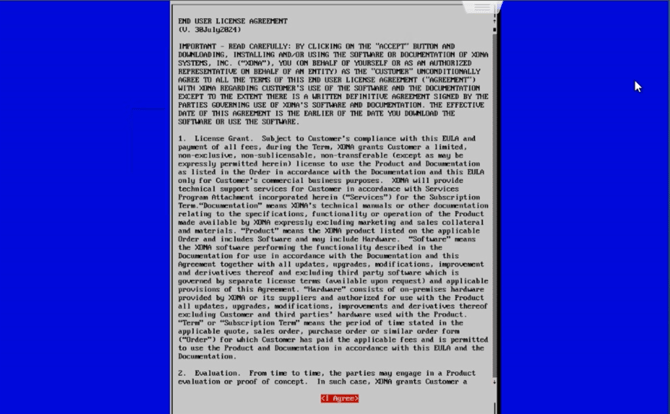
The End User License Agreement (EULA) will appear. Read through the license and then use the Tab key to select the <I Agree> option. Press Enter.
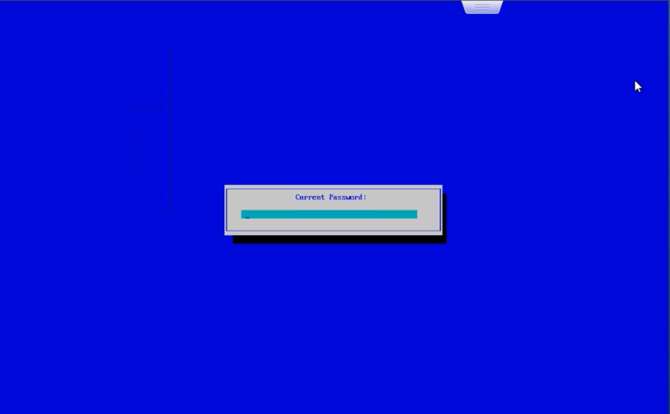
Type the default password for Xona's csg user. This default password is xona.
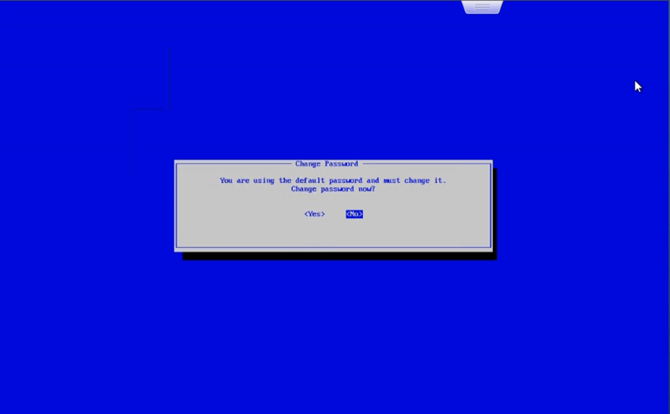
After authenticating with the default password, you will be asked to change the password. Selecting <No> here will prevent you from continuing, so select <Yes> and then press Enter.
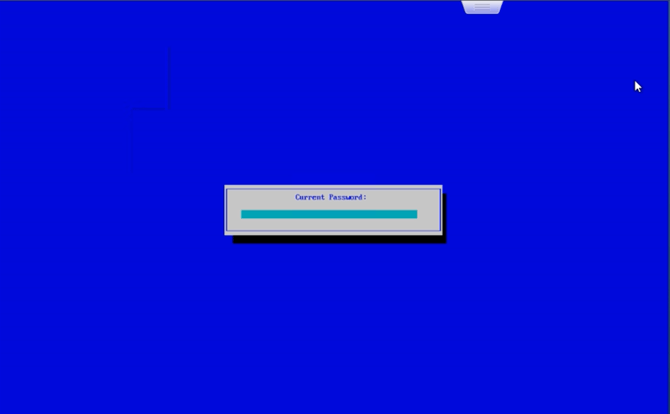
Type the current password once more (default: xona). Press Enter.
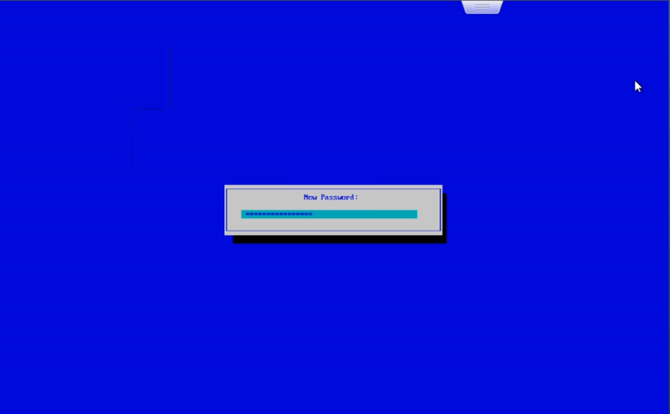
Type the new password. This password must contain a combination of 15 uppercase, lowercase, numeric, and symbolic ASCII characters. The same type of character cannot repeat more than 4 times in the password, otherwise it will be rejected. Press enter.
It is recommended to use a randomized password. Please keep this password securely vaulted.
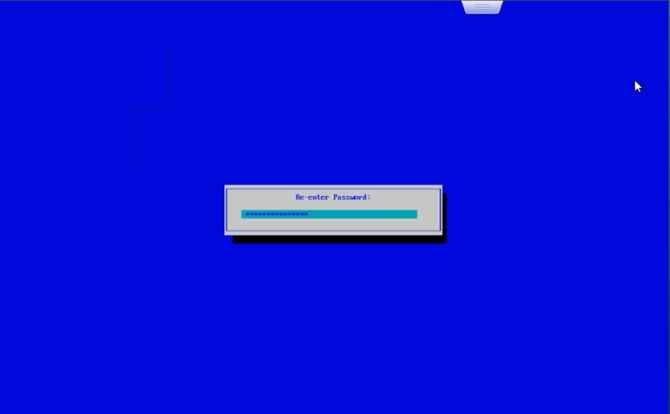
Type in the new password once more to confirm. Press Enter.
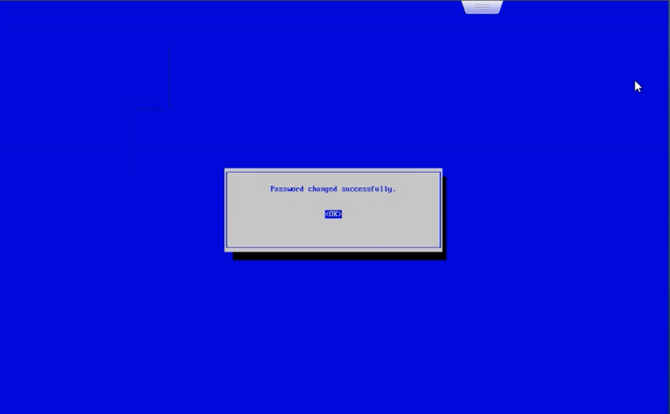
This screen indicates the password was successfully changed. Press Enter while <OK> is selected.
If this screen is not shown, then you must attempt to change the password again.
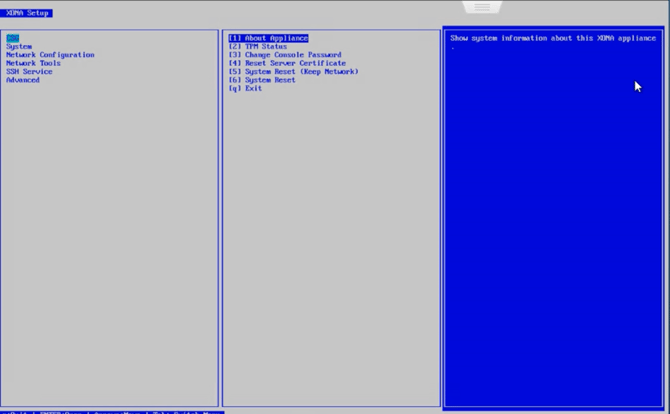
You may now configure the appliance using the Setup Console.
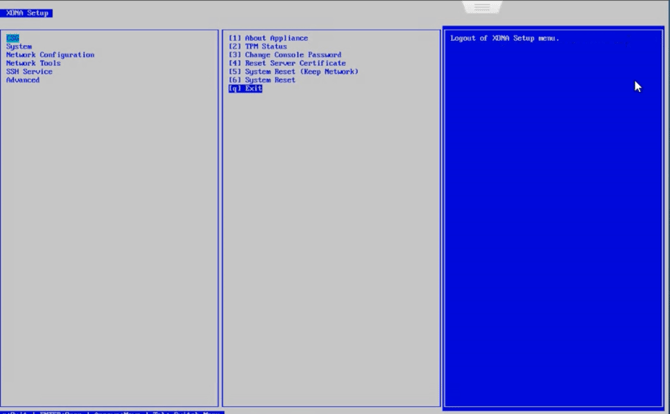
When finished, you may use the Exit option to exit the CSG Setup Console. Alternatively, it will automatically logout after 5 minutes of inactivity.
When the splash page is shown, it will display the Xona device's UUID in the Installation ID field. This value is critically important for the Xona license request process.