
Table of Contents
- Overview
- Affected Environments
- Step 1: Enabling Web Connection Features
- Step 2: Staging the File and Generating a Link
- Step 3: Downloading the File Inside the Web Connection
- Related Articles
Overview
When utilizing a Web Connection, your Xona Critical System Gateway (CSG) renders an isolated browser session. Because this session is securely isolated from your local workstation, you cannot drag and drop files directly into the remote browser. To securely transfer and download files from a web connection, you must utilize Xona's File Buckets to stage the file, generate a secure download link, and use the CSG's built-in clipboard and download features.
Affected Environments
- Platform: Hardware (1U Server, DIN Rail), Virtual Image (VMware/Hyper-V) | [x] AWS AMI | [x] Azure VM
- Component: CSG, XCM
Step 1: Enabling Web Connection Features
Before you can download files through an isolated web session, the connection profile itself must be configured to permit these actions.
- Log in to the CSG Web UI as an administrator.
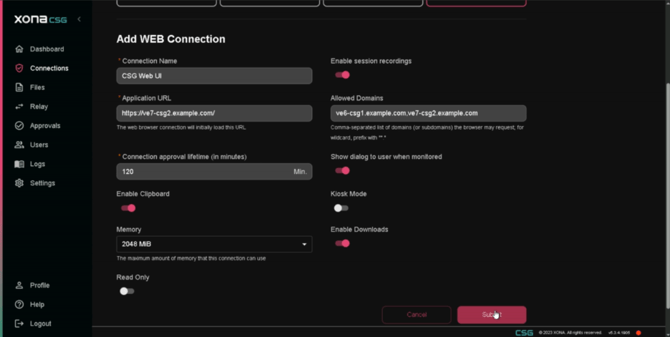
- Navigate to Connections and edit or add a WEB Connection profile.
- Scroll down to the connection settings and activate the Enable Clipboard option.
- Activate the Enable Downloads option.
- Click on the Submit button to save the connection profile.
Step 2: Staging the File and Generating a Link
Next, you must upload the target file to the appliance and generate a secure link that can be accessed from inside the isolated browser.
- Navigate to the Files menu on your CSG.
- Create a file bucket to contain the file (e.g., "Web Transfer Files").
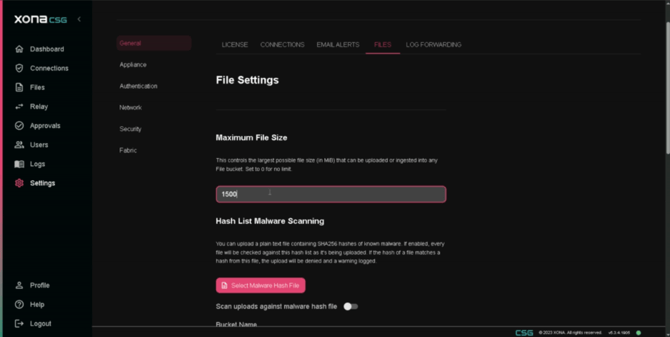
- Upload the target file to the designated file bucket. Note: Ensure your Maximum File Size under Settings > General > Files is large enough to accommodate the upload.
- Click on the uploaded file to view its details, then generate a download link for the file.
- Copy the download link to your clipboard.
Step 3: Downloading the File Inside the Web Connection
With the link copied to your local clipboard, you can now push it into the isolated web session to initiate the download.
- Launch your configured Web Connection.
- Open the Xona side-menu within the session and ensure you Enable Clipboard Sync for the web connection.
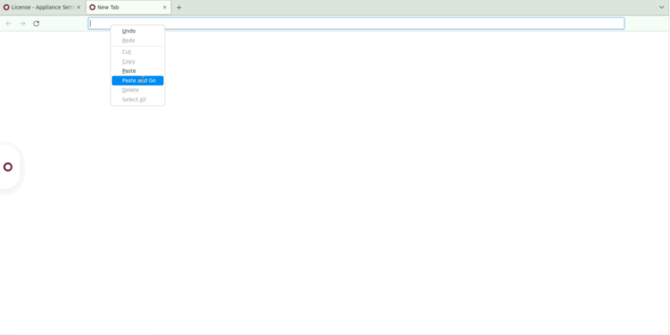
- Open a new tab within the web connection's browser.
- In the address bar, use the “Paste and Go” option to paste the download link and begin the download to the web connection’s browser.
- Note: If you see a page displaying "Warning: Potential Security Risk Ahead", click on "Advanced..." and then "Accept the Risk and Continue" to get past the browser warning.
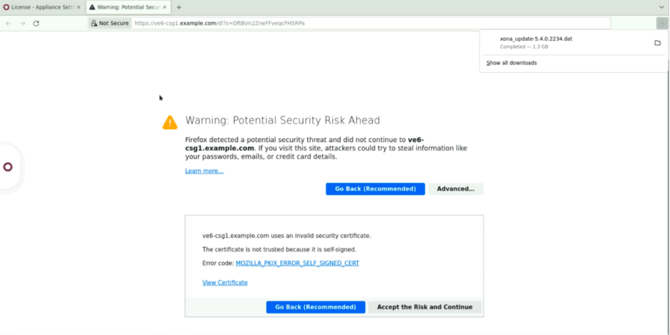
- Wait for the file download to complete inside the remote browser window. Because you activated the "Enable Downloads" feature in Step 1, the file will be downloaded to the web session's Downloads folder.
- With the file downloaded to the web session, you can now upload it as needed to your web session's other browser tabs.
The workflow for uploading files to a CSG File Bucket is near identical. A web application's file upload dialog will allow you to navigate the web session's Downloads folder, select the file to upload, and then upload it.
If you have questions about file transfer from web sessions in Xona, please contact support@xonasystems.com.